
How to Use Netflix
This guide explains how to log in and watch Netflix on different devices.
Netflix cannot be accessed directly from Mainland China. Please make sure your network environment supports normal access to Netflix.
‼ Please use the default browser on your phone or tablet. Do not use incognito/private browsing mode.
‼ Please make sure the Netflix App has already been installed.
‼ Before starting, make sure neither Netflix in your browser nor the Netflix App is logged into any account.
Android Instructions
You can first go to Settings - Apps - Default apps - Browser app to check which browser is set as the default browser, then use that browser to continue. The path may vary depending on your device model. If you cannot find it, try searching in Settings.
We recommend using Google Chrome as your default mobile browser. Otherwise, login errors may occur.
- Open the self-service link and choose one-click login for mobile/computer. Copy the generated login link, paste it into a new page, and open it. If you see the page shown in the example, it means the account has been connected successfully. Then you only need to connect it to the Netflix App to complete the login.
- Tap “Open App” on the page. If the browser asks whether to open the external app “Netflix”, tap to open it immediately. If Netflix is not opened immediately, it may redirect to Google Play Store, which will not complete the connection. If that happens, refresh the page and tap again.
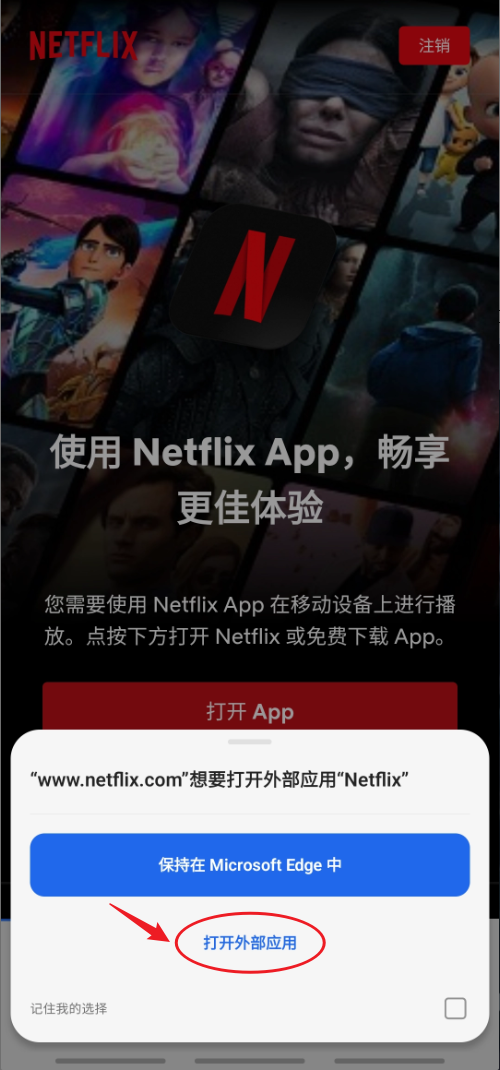
- After Netflix opens successfully, a verification pop-up will appear. At this point, the App login is complete.
iPhone Instructions
We recommend using the default Safari browser and avoiding private browsing mode. Otherwise, login errors may occur.
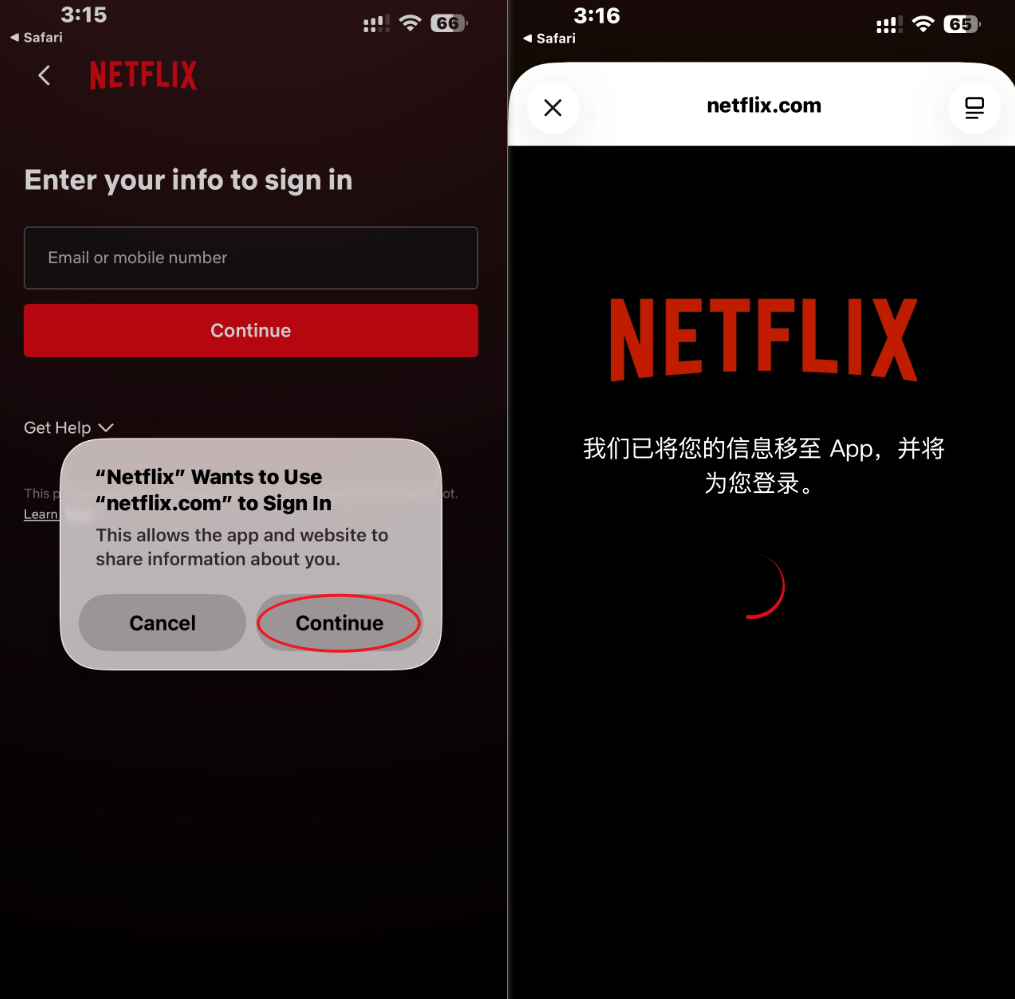
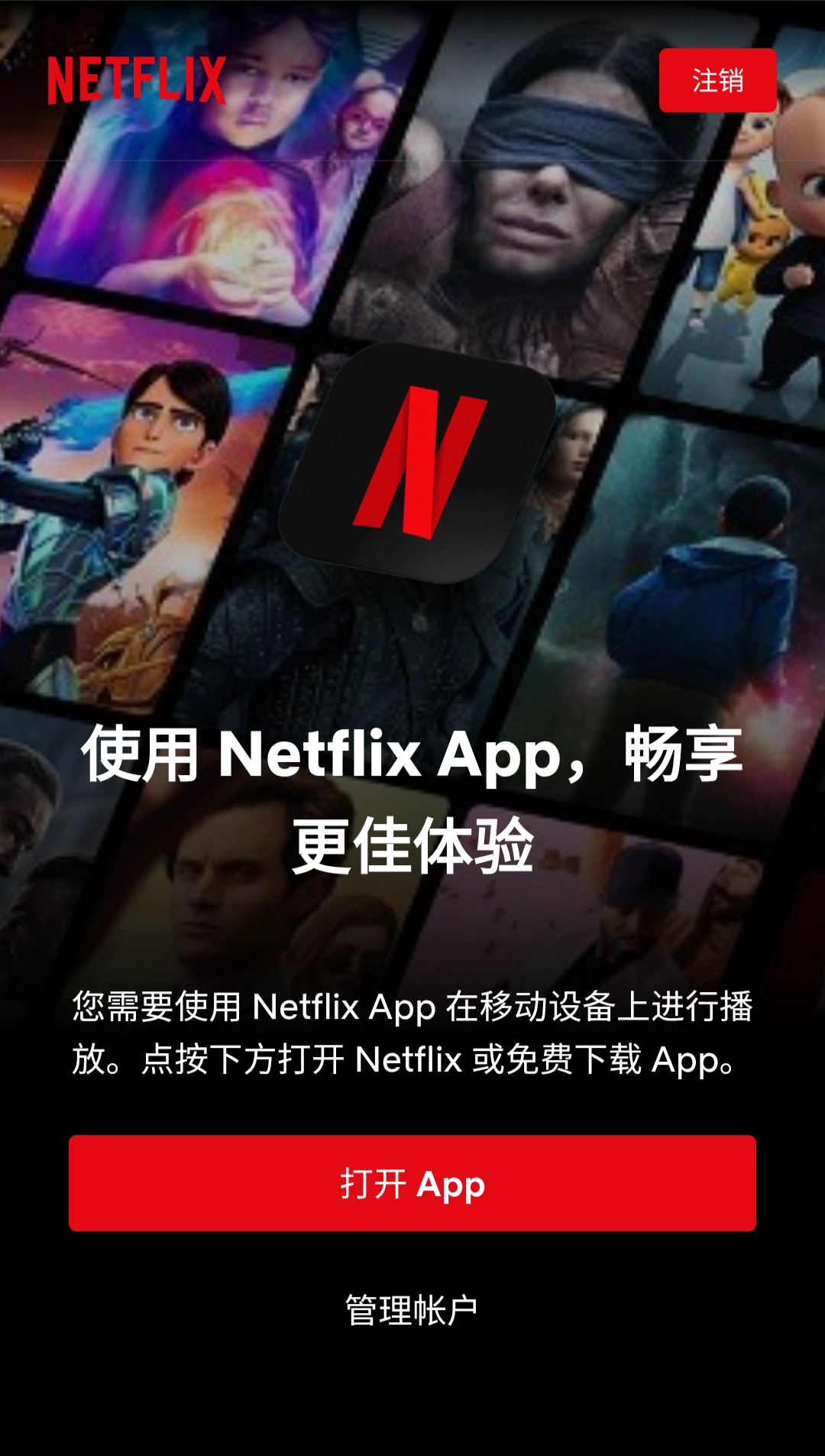
- Tap to get the mobile login link. Copy the generated login link, paste it into a new page, and open it. If you see the page shown in the example, it means the account has been connected successfully. Then you only need to connect it to the Netflix App to complete the login.
- Tap “Open App” on the page. It will redirect to Netflix and show a pop-up. Tap Continue, and it will proceed to automatic login. At this point, the App login is complete.
iPad / Tablet Instructions
We recommend using the default Safari browser and avoiding private browsing mode. Otherwise, login errors may occur.
- Tap to get the mobile login link. Copy the generated login link, paste it into a new page, and open it. Because tablets may open webpages in desktop mode by default, tap the icon shown in picture ①, then tap the option shown in picture ②, and finally tap “Request Mobile Website” shown in picture ③. Wait for the page to refresh.
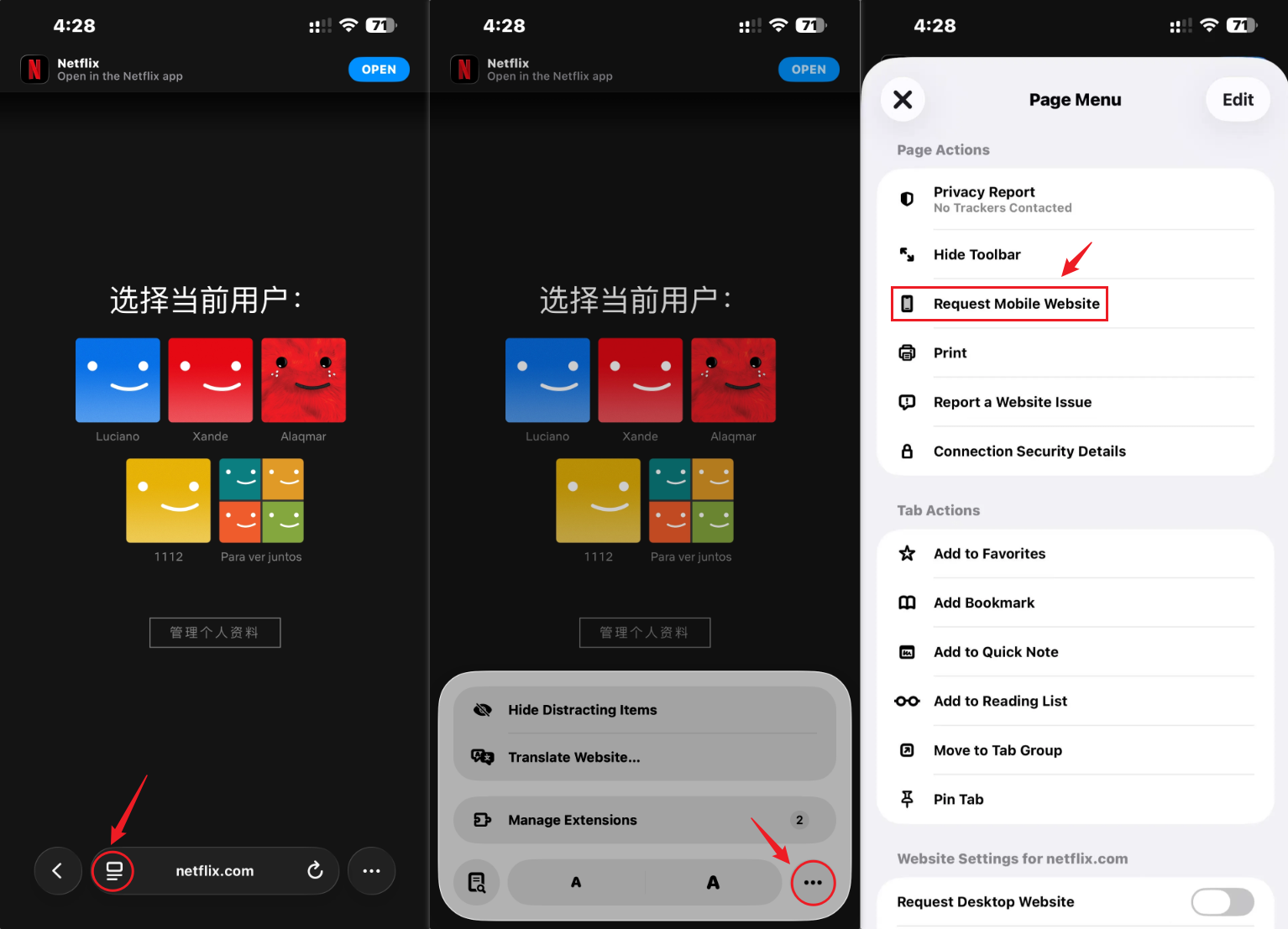
- If you see the page shown in the example, it means the account has been connected successfully. Then you only need to connect it to the Netflix App to complete the login.
- Tap “Open App” on the page. It will redirect to Netflix and show a pop-up. Tap Continue, and it will proceed to automatic login. At this point, the App login is complete.
If you need help with any other issue, please contact our support group.
Helpful Reminder
For long-term use, please do not modify account settings.
This includes but is not limited to adding/deleting profiles or changing the account language, except subtitle language.
Do not change the subscription plan, account password, or other account settings.